> ## Documentation Index
> Fetch the complete documentation index at: https://docs.duvo.ai/llms.txt
> Use this file to discover all available pages before exploring further.
# Duvo for Slack
> Duvo agents run real business work end to end. The Duvo app brings them into Slack — mention an agent to start a Run, read its evidence in the thread, and approve the actions your process gates on a human.
Duvo agents do the work, not just the reporting. They pull data from your
systems, apply your rules, decide what needs to happen, ask a human when the
call is theirs to make, and then carry the action out — raise the purchase
order, send the email, update the record.
The Duvo app puts that loop where your team already is. Mention the app in a
Slack channel and an agent starts a Run. It gathers what it needs, posts its
evidence and its recommendation back into the thread. Where your process gates
an action on a human, it waits for your approval before it acts.
The Duvo app is a companion to the Duvo platform. You need a Duvo account to
use it — [start here](https://app.duvo.ai).
## How it works in Slack
A team member mentions the Duvo app with a question or a request. That
mention starts a Run on the agent configured for that channel.
It reads the systems it is connected to, runs the checks its process
defines, and posts what it found — figures, charts, the checks it ran, and a
clear recommendation — into the same thread.
You choose which steps need a person — typically the ones that commit money
or leave the company. A gated step pauses and asks in the thread; approve or
deny, and the agent either carries on or stops.
It performs the action in the target system and reports back in the thread.
Live status updates keep the channel informed while it works.
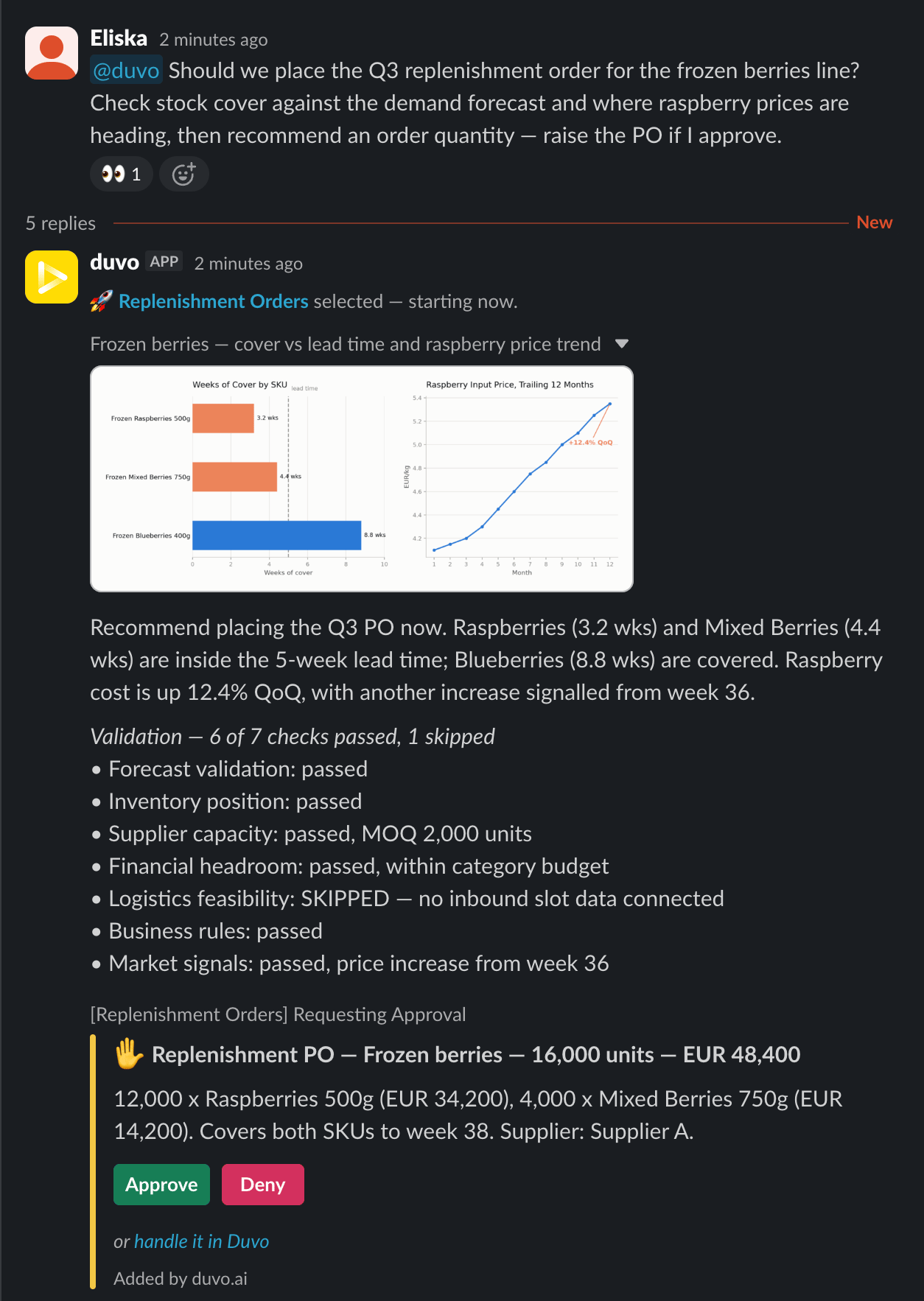
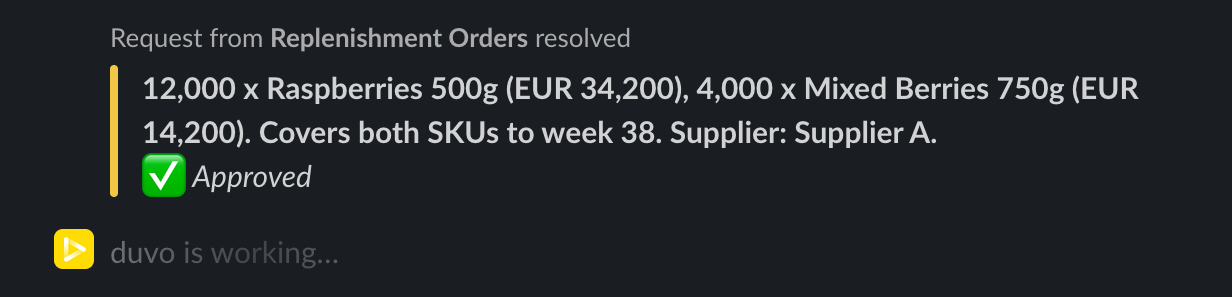 Figures in these examples are illustrative.
## What the app does in your workspace
* **Starts Runs from a mention** — Tag the app in a channel it has been invited to and the agent for that channel begins work, replying in the same thread.
* **Asks for decisions where you are** — Approvals, questions, and input requests arrive as a direct message from the app. Answer in Slack; the Run resumes.
* **Posts results and updates** — Reports, alerts, and Run output go to the channels you choose, with live progress while a Run is in flight.
* **Reads the thread as context** — Attached files and images, and messages posted by other apps such as Jira or GitHub, are picked up automatically so a request carries its supporting material.
* **Acts in Slack when a process needs it** — Sending and scheduling messages, reactions, channel management, file upload and download, and user or channel lookups.
Duvo uses large language models. Responses, summaries, and other output can be
inaccurate or incomplete — review anything consequential before acting on it.
This is why processes that commit money or leave the company are the ones to
gate on a human.
## Install it
The app is installed once per Slack workspace from inside Duvo.
Your Slack workspace needs to be on a paid Slack plan. Slack requires
automation apps to install only into paid workspaces, so an install into a
free workspace is refused.
Go to the [Connections page](https://app.duvo.ai/integrations), find
**Slack**, and click **Enable**. This needs the Manager role or above in
Duvo, and permission to add apps in your Slack workspace.
Slack shows you exactly what the app is asking for. Approve it, and the app
is installed for the whole workspace.
Back on the [Connections page](https://app.duvo.ai/integrations), open
**Slack**, find your workspace, and click **Enable** next to your account.
Every team member does this once — it tells Duvo which Slack user to
message.
## After you install
Run `/invite @Duvo` in the channel you want to work from. The app only sees
the channels it has been added to.
Enable Slack triggers per agent so a mention in the right channel starts the
right work.
Gate the actions that need a decision, so approvals land in Slack before
anything commits.
In Duvo, open **Settings > Requests** to get approvals, questions, and
failure alerts as direct messages.
The complete Slack Connection reference — capabilities, message formatting,
and what to check when something does not work.
Step-by-step Slack workflows: on-demand reports, request intake and routing,
threshold alerts, and weekly summaries.
## Permissions, data, and privacy
Installing authorizes two separate identities, and they reach different things:
* **The Duvo app** reaches only the channels and conversations it has been added to. It posts with an **APP** badge, so automated messages stay distinguishable from people.
* **Your linked Slack account** reaches whatever that account can already see. Duvo uses it to identify you and, where a process explicitly asks for it, to act as you — see [Slack bot identity](/user-guide/connections/slack-bot-identity).
Both are needed because they reach different things, not the same thing twice.
A file attached to a mention of the app is handed to the app, which is why the
app can read it. A file sitting in a channel the app was never invited to can
only be reached through your own account — so an agent that needs it works
under your permissions, sees exactly what you would see, and nothing else.
An agent never gets access beyond those boundaries. Tokens are encrypted at
rest, and you can revoke either identity at any time from the
[Connections page](https://app.duvo.ai/integrations) or by removing the app in
Slack.
For how Duvo handles connected data, see
[Security and privacy](/user-guide/resources/security-and-privacy), the
[Privacy Policy](https://www.duvo.ai/privacy-policy), and the
[Terms of Use](https://www.duvo.ai/terms-of-use).
## Support
Email [support@duvo.ai](mailto:support@duvo.ai) with your Slack workspace name
and what you were trying to do.
This documentation is built and hosted on [Mintlify](https://mintlify.com), a developer documentation platform.
Figures in these examples are illustrative.
## What the app does in your workspace
* **Starts Runs from a mention** — Tag the app in a channel it has been invited to and the agent for that channel begins work, replying in the same thread.
* **Asks for decisions where you are** — Approvals, questions, and input requests arrive as a direct message from the app. Answer in Slack; the Run resumes.
* **Posts results and updates** — Reports, alerts, and Run output go to the channels you choose, with live progress while a Run is in flight.
* **Reads the thread as context** — Attached files and images, and messages posted by other apps such as Jira or GitHub, are picked up automatically so a request carries its supporting material.
* **Acts in Slack when a process needs it** — Sending and scheduling messages, reactions, channel management, file upload and download, and user or channel lookups.
Duvo uses large language models. Responses, summaries, and other output can be
inaccurate or incomplete — review anything consequential before acting on it.
This is why processes that commit money or leave the company are the ones to
gate on a human.
## Install it
The app is installed once per Slack workspace from inside Duvo.
Your Slack workspace needs to be on a paid Slack plan. Slack requires
automation apps to install only into paid workspaces, so an install into a
free workspace is refused.
Go to the [Connections page](https://app.duvo.ai/integrations), find
**Slack**, and click **Enable**. This needs the Manager role or above in
Duvo, and permission to add apps in your Slack workspace.
Slack shows you exactly what the app is asking for. Approve it, and the app
is installed for the whole workspace.
Back on the [Connections page](https://app.duvo.ai/integrations), open
**Slack**, find your workspace, and click **Enable** next to your account.
Every team member does this once — it tells Duvo which Slack user to
message.
## After you install
Run `/invite @Duvo` in the channel you want to work from. The app only sees
the channels it has been added to.
Enable Slack triggers per agent so a mention in the right channel starts the
right work.
Gate the actions that need a decision, so approvals land in Slack before
anything commits.
In Duvo, open **Settings > Requests** to get approvals, questions, and
failure alerts as direct messages.
The complete Slack Connection reference — capabilities, message formatting,
and what to check when something does not work.
Step-by-step Slack workflows: on-demand reports, request intake and routing,
threshold alerts, and weekly summaries.
## Permissions, data, and privacy
Installing authorizes two separate identities, and they reach different things:
* **The Duvo app** reaches only the channels and conversations it has been added to. It posts with an **APP** badge, so automated messages stay distinguishable from people.
* **Your linked Slack account** reaches whatever that account can already see. Duvo uses it to identify you and, where a process explicitly asks for it, to act as you — see [Slack bot identity](/user-guide/connections/slack-bot-identity).
Both are needed because they reach different things, not the same thing twice.
A file attached to a mention of the app is handed to the app, which is why the
app can read it. A file sitting in a channel the app was never invited to can
only be reached through your own account — so an agent that needs it works
under your permissions, sees exactly what you would see, and nothing else.
An agent never gets access beyond those boundaries. Tokens are encrypted at
rest, and you can revoke either identity at any time from the
[Connections page](https://app.duvo.ai/integrations) or by removing the app in
Slack.
For how Duvo handles connected data, see
[Security and privacy](/user-guide/resources/security-and-privacy), the
[Privacy Policy](https://www.duvo.ai/privacy-policy), and the
[Terms of Use](https://www.duvo.ai/terms-of-use).
## Support
Email [support@duvo.ai](mailto:support@duvo.ai) with your Slack workspace name
and what you were trying to do.
This documentation is built and hosted on [Mintlify](https://mintlify.com), a developer documentation platform.